
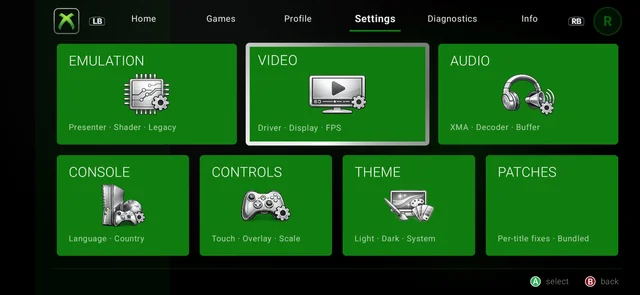
For the longest time, the only way to play Xbox 360 games on an Android handheld was to jump through the agonizing hoops of PC translation layers like Winlator, essentially brute-forcing the Windows version of Xenia to run on a phone. We’ve warned you time and time again that standalone “Xbox 360 APKs” were nothing but malicious scams.
Well, it’s time to rewrite the rulebook. A legitimate, native ARM64 port of Xenia has quietly surfaced, and it is poised to change mobile emulation forever.
Enter X360 Mobile (officially hosted at x360mobile.com), an ambitious new project cutting out the Windows middleman to bring 7th-generation console gaming directly to your Android device. Here is everything you need to know about the new holy grail of handheld emulation, along with a complete step-by-step guide to getting the early preview build up and running.
What is X360 Mobile?
Unlike the malware-riddled fake APKs of the past, X360 Mobile is completely transparent about its DNA. The project is an experimental port based directly on the trusted Xenia Canary core.
Instead of forcing your device to translate heavy x86 Windows instructions into ARM—which absolutely tanks performance and turns your handheld into a pocket-sized furnace—the X360 Mobile team is porting the engine to run natively on ARM64 architecture.
Key features of the current build include:
- Native Vulkan Rendering: Bypasses DirectX entirely to communicate directly with modern mobile GPUs.
- Snapdragon & Adreno Optimization: Built specifically to leverage the raw power of high-end Qualcomm Snapdragon chipsets.
- Controller First: Designed from the ground up for physical controllers, making it a perfect match for devices like the AYN Odin 2 or the Retroid Pocket 4 Pro.
The project fully respects the original Xenia open-source license (BSD-3) and is currently entirely experimental.
The Turnip Driver Advantage
The secret sauce to getting demanding emulators running smoothly on Android isn’t just about the raw processor—it’s about the graphics drivers. X360 Mobile explicitly leverages custom drivers for Adreno GPUs to maximize performance.
If you are running a Snapdragon device, you will absolutely want to pair this emulator with the latest custom Mesa Turnip drivers to fix graphical glitches and squeeze out every last frame. If you aren’t familiar with swapping GPU drivers on your handheld, check out our ultimate guide on installing and updating Turnip Drivers right here. Trust us, for high-end emulation like this, sticking to your phone’s stock system drivers is leaving massive performance on the table.
Current Status: What Can It Actually Play?
Before you delete Winlator entirely, let’s temper expectations: X360 Mobile is officially an Alpha Test (Version 0.5.3).
However, their internal compatibility dashboard is incredibly promising. They report having tested over 360 games, with a significant 45% of the library already marked as “Playable.” While experimental Mali GPU support is mentioned for MediaTek and Exynos users, Snapdragon devices will definitively have the smoothest ride during these early alpha stages.
While the official site handles the closed alpha coordination, the developers have put out an early preview build for enthusiasts who want to test the raw code.
The Ultimate X360 Mobile Setup Process
Before beginning, ensure your Android device meets the minimum hardware requirements (a Snapdragon 8 Gen 1 or higher is strongly recommended) and that you have legally dumped Xbox 360 game files (.iso or extracted .xex) ready on your internal storage.
1. Download and Install X360 Mobile – Sideload the alpha build.
Navigate to the official X360 Mobile GitHub Releases page. Download the latest .apk file and install it on your Android device. You may need to grant your file manager permission to “Install unknown apps.”
2. Install Custom Turnip Drivers – Crucial for Snapdragon devices.
Launch X360 Mobile and open the settings menu. Navigate to the GPU / Graphics section. Tap “Install Custom Driver” and locate your latest Mesa Turnip .zip file. Select the Turnip driver as your active GPU driver. Running default system drivers will result in massive graphical glitches or immediate crashes.
3. Apply the ‘Best Settings’ Configuration – Optimize the emulator backend.
To maximize your frame rate and prevent your phone from thermal throttling, apply these specific tweaks in the settings menu:
- Resolution Scale: Ensure this is locked to
1x(720p). Do not attempt to upscale to 1080p or 4K during the alpha phase. - VSync: Turn this OFF to unlock the frame rate and reduce input latency.
- Mount Cache: Toggle this to ON. This significantly reduces stuttering during gameplay by caching game data more efficiently.
4. Set Your Game Directory – Tell the app where to look.
Return to the main interface and tap the folder icon to add your game directory. Navigate to the specific folder on your Android storage where you keep your .iso or .xex files and grant the app permission to read that folder.
5. Boot and Build Shaders – Expect compilation stutter.
Tap your game to launch it. The first time a game boots, it will run poorly because the emulator is compiling shaders in real-time. Give the game 5 to 10 minutes of gameplay to build its shader cache; performance will noticeably stabilize and smooth out afterward.
6. Games Confirmed Running at Full Speed
Tested directly on a Snapdragon 8 Gen 5 device using the new Axx drivers, the following 38 titles run at full speed.
Note: Because the emulator is still in alpha, some of these titles may still experience the occasional random crash, but the in-game performance is flawlessly smooth.
- Anarchy Reigns
- Army of Two: The Devil’s Cartel (Army of Two 1 & 2 also run perfectly)
- Assassin’s Creed
- Asura’s Wrath
- Battlefield: Bad Company 2
- Binary Domain
- Bionic Commando
- Bodycount
- Dark Sector
- Dead to Rights: Retribution
- Dishonored
- Enslaved: Odyssey to the West
- Far Cry 3
- Fuse
- Gears of War 3
- Gears of War: Judgment
- Grand Theft Auto IV
- James Bond 007: Blood Stone
- Kane & Lynch: Dead Men
- Kane & Lynch 2: Dog Days
- King’s Quest: The Complete Collection
- Lost Planet 2
- Madden NFL 25
- Mass Effect 2
- Metal Gear Rising: Revengeance
- Metal Gear Solid V: The Phantom Pain
- Middle-earth: Shadow of Mordor
- MindJack
- Ninja Blade
- Prototype 2
- Red Faction: Armageddon
- Remember Me
- Rise of the Tomb Raider
- Star Wars: The Force Unleashed II
- The Cursed Crusade
- The Evil Within
- The Saboteur
- Velvet Assassin
There are undoubtedly hundreds of other games that work flawlessly that we simply haven’t had the time to test yet. X360 Mobile has completely changed the landscape of Android emulation overnight.
Troubleshooting Common Issues
Even with the best settings applied, X360 Mobile is still highly experimental. Here are a few things to keep in mind while testing:
Device Overheating: Emulating the Xbox 360 will push your SoC to its absolute limits. If you are playing on a handheld device with active cooling (like the Odin 2), ensure your fans are set to “Sport” or “High” performance mode before booting a game.
Audio Desync/Crackling: This is a known issue in the current build. Audio emulation is highly CPU-dependent and will often lag behind the video output or crackle when the frame rate dips.
Black Screens on Boot: If a game boots to a black screen but you hear audio, double-check that you have the correct Turnip driver installed for your specific Adreno GPU version, or try switching back to Vulkan defaults to test compatibility.
Leave a Reply