
Here at Pocketgaming.org, we have been tracking the rapid evolution of portable gaming and handheld hardware for years, watching smartphones transform from simple communication devices into processing powerhouses. For the emulation community, playing PlayStation 7th-generation titles on a mobile device has always been the ultimate holy grail. The PlayStation 3’s intricate and notoriously complex Cell Broadband Engine architecture was difficult enough to emulate on high-end desktop computers, let alone on mobile devices constrained by thermal limits and battery life.
However, the landscape of mobile emulation is shifting dramatically. We are incredibly excited to dive deep into the experimental release of ARMSX3for Android. This project marks a monumental leap forward, proving that bringing desktop-class console emulation to your pocket is an unfolding reality.
The Technology Behind ARMSX3
At its core, ARMSX3 is a highly experimental port built upon the venerable, open-source RPCS3 codebase. While the mainline RPCS3 project has made incredible strides on x86 desktop hardware, porting that success to the ARM64 architecture used in modern smartphones required overcoming massive technical hurdles. One of the biggest breakthroughs in ARMSX3 involves custom shader compilation techniques tailored specifically for Adreno graphics accelerators, which dominate the high-end Android market.
Furthermore, ARMSX3 intelligently recognizes the big.LITTLE structure of modern mobile processors. Modern Snapdragon chips feature a mix of high-performance cores and energy-efficient cores. ARMSX3 efficiently distributes the most demanding emulation threads—particularly those handling the PS3’s Synergistic Processing Elements (SPEs)—directly to the fast performance cores. This prevents the bottlenecks that previously crippled mobile PS3 emulation attempts. Instead of relying on legacy profiles, the LLVM compiler settings within ARMSX3 are dynamically selected and optimized for the specific System-on-Chip (SoC) installed in your smartphone or dedicated Android gaming handheld.
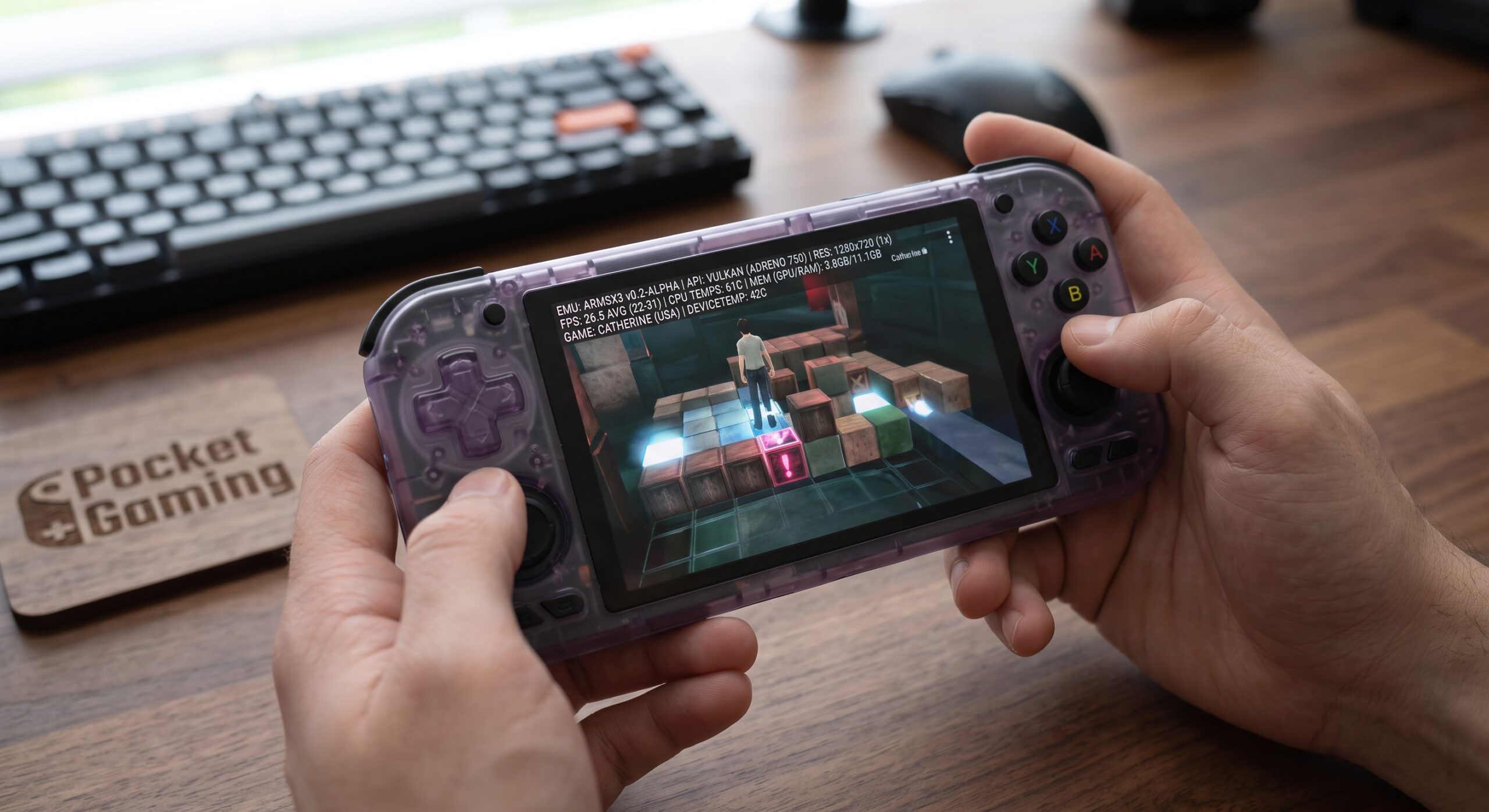
While we are still in the early proof-of-concept phase, testing is already showing massive promise. On flagship devices featuring the Snapdragon 8 Gen 2 or Gen 3, testers are seeing less demanding titles like Catherine or 3D Dot Game Heroes booting and running at surprisingly playable framerates, hovering between 15 to 30 FPS depending on the thermal throttling of the device.
Comparing the Field: ARMSX3 vs. Apsx3 (aPS3e)
ARMSX3 is not the first attempt at PS3 emulation on Android, and understanding its place in the ecosystem requires looking at the competition. Many users have asked how ARMSX3 stacks up against other emerging projects, most notably aPS3e (often referred to by the community as Apsx3).
aPS3e is another native PS3 emulator for Android that utilizes portions of the RPCS3 source code. It made waves earlier this year by being one of the first functioning PS3 emulators available directly on the Google Play Store, pioneering mobile-first features like customizable touch controls and native Vulkan graphics acceleration on smartphones.
However, the development approach differs significantly. aPS3e operates on a freemium model, offering a free base app on the Google Play Store with the option to purchase a premium version to support development. ARMSX3, conversely, is completely free, open-source, and distributed primarily via GitHub. Because ARMSX3 is developed by a team with deep roots in ARM-specific optimization (drawing talent from previous PS2 emulation projects), it integrates the absolute latest ARM-specific improvements directly from the mainline RPCS3 project. While aPS3e provides a highly accessible, user-friendly frontend for standard users, ARMSX3’s specialized thread-scheduling algorithms give it a theoretically higher ceiling for raw performance and stability on heavy 3D titles.
Comparing the Field: ARMSX3 vs. RPCSX
Then there is RPCSX (frequently distributed as RPCSX-UI-Android). RPCSX essentially served as the early foundation for mobile PS3 emulation. It was an experimental Android native user interface built to interface with a rudimentary port of the core emulator. It acted as an incredible stepping stone, demonstrating that PS3 firmware (.PUP files) and decrypted game data could indeed be recognized and loaded natively on Android.
However, RPCSX was heavily hindered by performance overhead. It lacked the granular, low-level optimization required to make games playable, struggling significantly with shader compilation on mobile GPUs, which led to frequent graphical glitches, missing textures, and game-breaking freezes. ARMSX3 takes the baton from RPCSX and completely overhauls the graphics pipeline. If RPCSX was the rough architectural blueprint proving it could be done, ARMSX3 is the concrete construction phase making it playable.
How to Install and Run Games on ARMSX3
Getting ARMSX3 running requires a bit of manual setup, as it is not a simple plug-and-play app. You will need a high-end Android device (Snapdragon 8 Gen 1 or newer is highly recommended), the official PS3 firmware, and legally sourced dumps of your own games.
1.Download and Install the ARMSX3 APK:Requires sideloading.
Navigate to the official ARMSX3 GitHub repository and download the latest .apk file from the “Releases” section. Locate the file in your Android device’s file manager and tap it to install. You may need to grant your browser or file manager permission to “Install unknown apps” in your Android security settings.
2.Install the Official PS3 Firmware:Do not skip this step.
Before the emulator can run any games, it needs the official PlayStation 3 operating system. Download the official PS3UPDAT.PUP firmware file directly from Sony’s official support website. Open ARMSX3, navigate to File > Install Firmware, and select the .PUP file you just downloaded. Wait for the installation to compile the necessary system modules.
3.Prepare and Transfer Your Game Dumps:Decrypted folder format required.
ARMSX3 does not currently support encrypted ISO files. You must use games dumped from your own console in the decrypted folder format (typically a folder containing a PS3_GAME subfolder and a PS3_DISC.SFB file). Transfer these game folders from your PC to a dedicated folder on your Android device’s internal storage (e.g., Internal Storage/PS3_Games/).
4.Add Your Games to the Emulator:
Open ARMSX3 and tap the Add Games (or +) icon in the main UI. Navigate to the directory where you transferred your decrypted game folders and select it. The emulator will scan the directory and populate your game list with the appropriate titles and cover art.
5.Configure Compiler Settings and Launch:
Before launching a heavy 3D title, long-press the game icon and select Custom Configuration. Ensure the GPU Renderer is set to Vulkan. For the SPU Block Size, setting it to “Safe” often provides the best stability on mobile processors, though “Mega” can yield higher framerates on top-tier Snapdragon chips. Once configured, tap the game to compile the initial shaders and boot the title.
The Road Ahead
We are entering a new frontier of mobile emulation. Right now, ARMSX3’s focus is strictly on optimization and stability. The builds are experimental, meaning occasional crashes and UI hiccups are part of the process. However, the development roadmap is aggressive, with immediate goals targeting expanded game compatibility and refining Adreno graphics drivers. Keep a close eye on Pocketgaming.org, as we will be tracking ARMSX3’s updates, testing new hardware benchmarks, and covering the ongoing evolution of PS3 emulation on Android.
Leave a Reply