
The Nintendo Virtual Boy is one of the most unique pieces of gaming history. While it was a commercial failure in 1995, its library contains hidden gems like Virtual Boy Wario Land and Jack Bros. that deserve to be played.
Thanks to the power of modern mobile devices and the Beetle VB emulator core, you can now recreate the 3D experience on your phone. Even better, you can use the official Nintendo Labo VR/Cardboard kits to turn your smartphone into a high-definition Virtual Boy headset.
Here is your step-by-step guide to setting up the ultimate portable Virtual Boy rig.
What You’ll Need
- A Smartphone: iOS (App Store) or Android (Google Play).
- RetroArch: The frontend used to run the emulator core.
- Beetle VB Core: The most accurate Virtual Boy emulator available.
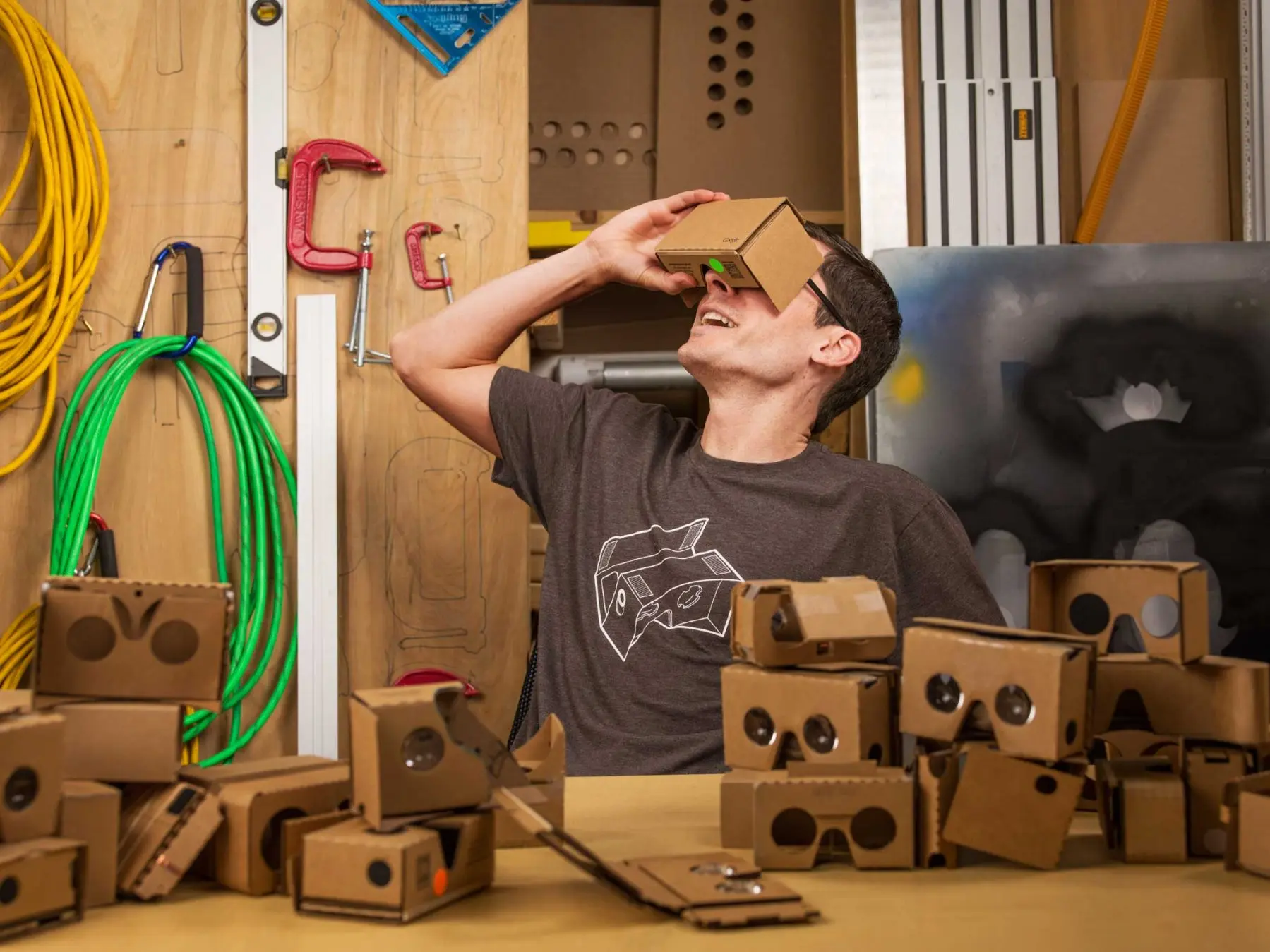
- VR Headset: A Google Cardboard-compatible viewer or the Official Nintendo Cardboard Model.
- Bluetooth Controller: Since your phone will be inside a headset, you’ll need an external controller (like an 8BitDo, Xbox, or PlayStation controller).
Step 1: Install RetroArch and the Beetle VB Core
RetroArch is the “mother app” that hosts various game engines (called cores).
- Download RetroArch: Search for “RetroArch” in the Apple App Store or Google Play Store and install it.
- Launch RetroArch and navigate to Load Core.
- Select Download a Core.
- Scroll down to Nintendo – Virtual Boy (Beetle VB) and tap to download.
According to the Libretro documentation, Beetle VB is a high-performance port of Mednafen’s Virtual Boy engine, supporting stereoscopic 3D and custom color palettes.
Step 2: Configure for 3D (Side-by-Side Mode)
To use a VR headset like the Nintendo Cardboard, you need to tell the emulator to split the screen into two images—one for each eye.
- Start a Virtual Boy game in RetroArch.
- Open the Quick Menu (usually by tapping the RetroArch logo or a button combo).
- Go to Core Options.
- Find the Video or Display settings.
- Set the Output Mode to Side-by-Side (SBS).
- (Optional) Change the Color Palette. If the “Vivid Red” gives you a headache, you can switch it to Grayscale, Amber, or Green for a more comfortable experience.
Step 3: Setting Up the Nintendo Cardboard
While Nintendo markets their Cardboard Model for the Switch, it is effectively a high-quality VR viewer.
- For Android Users: Most Android phones fit perfectly into the slot intended for the Switch screen.
- For iOS Users: Even the largest iPhones (Pro Max models) generally fit within the housing of the Nintendo Labo/Cardboard VR goggles.
- The Benefit: Using the official Nintendo cardboard gives you the correct focal distance and that nostalgic “heavy” aesthetic of the original 1995 hardware, but with a much higher resolution screen.
Step 4: Map Your Controller
Since the Virtual Boy had a unique “Double D-Pad” controller, you’ll want to ensure your Bluetooth controller is mapped correctly.
- Connect your controller via Bluetooth in your phone’s settings.
- In RetroArch, go to Settings > Input > Retropad Binds.
- Ensure the right analog stick or the face buttons are mapped to the Virtual Boy’s second D-Pad for games like Robotron: 2084.
Why This is Better Than the Original Hardware
The original Virtual Boy used oscillating mirrors and LEDs that were prone to mechanical failure and caused significant eye strain. By using Beetle VB on a modern smartphone:
- OLED Screens: You get true “perfect blacks,” making the red graphics pop more than they did on the original tech.
- Save States: Save your progress anywhere—a feature the original hardware lacked.
- No Neck Pain: You can use the cardboard viewer while reclining, avoiding the “Virtual Boy hunch.”
Image: Time